Reporting an Accident
If an athlete gets hurt, you file the report there and then — from the session you were already using to mark attendance, or from your Coach Dashboard for any athlete in the club. It takes about a minute, and it replaces the paper accident book.
Where to find it
You report accidents in the coach app. There are two ways in, and the form is the same either way.
- Your own session (the normal route) — open the session from your Coach Dashboard. Just above the Athletes list, under the Evaluate skills card, you'll see a coral Report an accident card. Tap it and pick the child from the Who was hurt? drop-down, which lists that session's register. There's nothing to search for.
- Any other athlete — helping out or covering at a session that isn't yours, a child who isn't on the register, or an accident outside any session. Tap the coral Report an accident card on the Coach Dashboard itself (the home screen). It's always there, even if you have no sessions today. You search for the athlete by name instead (see Any other athlete, below).

Any other athlete
Any coach can file a report for any athlete in the club — you don't have to be assigned to the session. Maybe you were there for extra support, or the athlete is from another group. From the card on your Coach Dashboard:
- Who was hurt? — search for the athlete by name. Type at least two letters; their teams are shown to help you pick the right one.
- Session (optional) — the sessions on the date you choose are listed, whoever takes them. Pick the one it happened at, or leave it as Not during a session.
You can also get here from the session form. If the athlete isn't on that session's register, tap Not on this register? Search all athletes under the athlete drop-down. It opens the same form with the session already chosen. After that it's identical: the same questions, and the same people told when you submit.
Filling in the form
Some of it is already filled in for you — the session (when you start from one), the time (it starts as the current time), the location if the session has one, and your name as the first aider. You only need to add what actually happened.
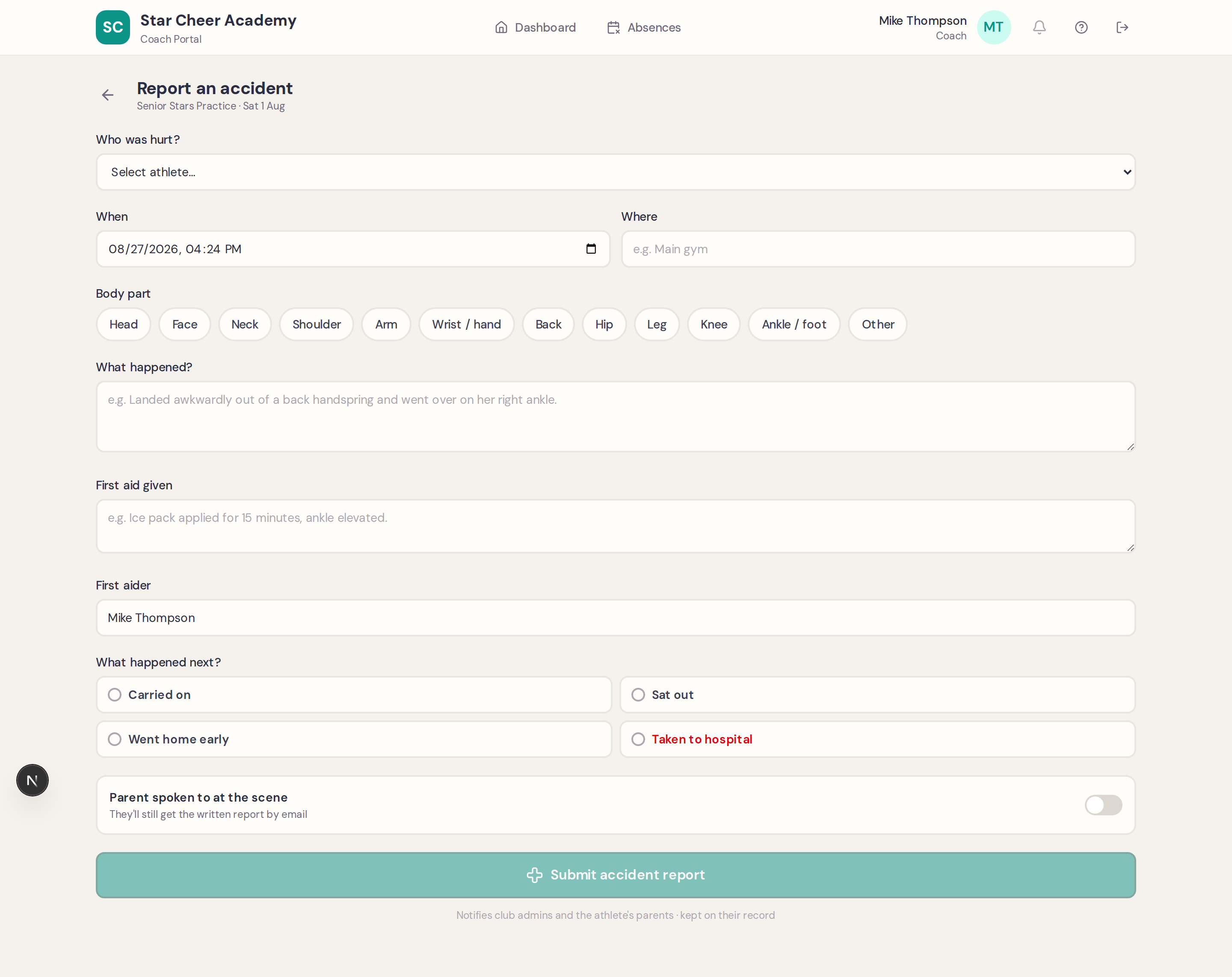
- Who was hurt? — pick the athlete from the session's register (or search for them, if you started from the dashboard card)
- When and where — the time starts as now, so change it if the accident happened earlier. The location is filled in from the session; change it or add it if it's blank (e.g. “Main gym — spring floor”)
- Body part — tap a chip: Head, Face, Neck, Shoulder, Arm, Wrist / hand, Back, Hip, Leg, Knee, Ankle / foot, or Other
- What happened — a plain description in your own words
- First aid given — what you actually did
- What happened next — Carried on, Sat out, Went home early, or Taken to hospital
- Parent spoken to at the scene — a toggle recording whether you told them in person. They still get the written record by email either way.
Head injuries
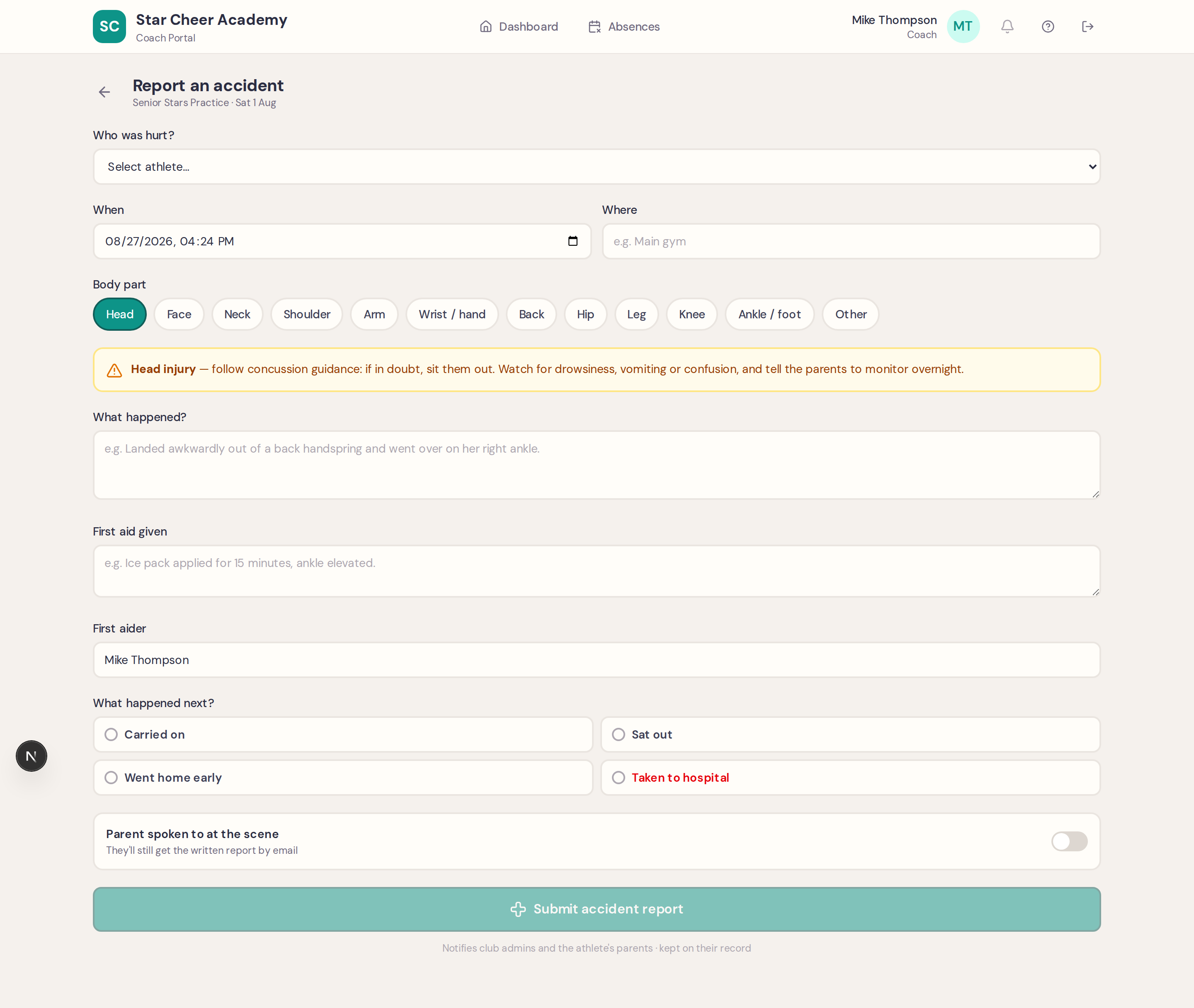
Choosing Head, Face or Neck brings up concussion guidance automatically. If in doubt, sit them out.
What happens when you submit
- Club admins are alerted immediately — an urgent notification, so nothing waits for someone to notice it
- Every parent linked to that athlete is emailed the same day — not just the main contact. This goes out even if they've unsubscribed from other club email, because it's a safeguarding record.
- It goes on the athlete's record — visible on their Medical tab and in the club's accident log
Seeing recent accidents
You also see accidents that have already happened, so you know before you start a session that someone in your group was hurt. Two places:
- “Recent accidents” on your dashboard — reports from the last 90 days for athletes on the teams you coach, whoever filed them. Tap one to read what happened, the first aid given, and any follow-up note an admin has added.
- A marker on the register — an athlete with a recent report shows a small coral cross next to their name on the session attendance list. Tap it for their reports without leaving the register.
It is read-only, and deliberately narrow: your teams, recent injuries. If you cover whole evenings and an admin has ticked Sees all club sessions for you, you see the club's recent reports instead. You don't see RIDDOR paperwork or whether the club has emailed the parents — that's admin work. This is children's health data, so every time you open it, the club's audit log records that you did — exactly as it does when an admin opens the accident log.
If something has changed — a fracture confirmed, a longer lay-off — tell an admin and they'll add a dated follow-up note. Coaches can't add notes.
You can't edit or delete a report
Once submitted, a report is fixed. That's deliberate — an accident book that can be quietly changed afterwards is worthless if there's ever an insurance claim or an HSE question. If you got something wrong or more information turns up later, tell an admin and they'll add a dated follow-up note to the record.
If you're not sure whether to file one
File it. A report that turned out to be nothing costs you a minute; a missing report for an injury that develops overnight is a real problem. Even “carried on” outcomes are worth recording — patterns matter, and the log is what shows them.
Can't see Report an accident?
Every coach has the Report an accident card on their Coach Dashboard. If you can't see it, or you don't get a Coach Dashboard at all, ask your club admin to check that your role is Coach. They can do that on your page under Staff. If you also need some admin access, they can give you that as extra access on top of the Coach role.