Migrating from Coacha
Moving your club from Coacha to Kolva Club is a two-track process: bring your data across in one go, then get parents onto Direct Debit in Kolva while Coacha keeps collecting. This guide walks you through both, plus the cutover day we'll run together.
What you can expect
- Athletes, parents, and teams import in a single step using AI-driven column mapping — you don't need to rename your Coacha columns first.
- Sessions import with their day-of-week and timing where Coacha provides it.
- Coaches and admins import as staff with the right role.
- Direct Debit mandates do not carry over. Each parent gets an email with a link and sets up a new Direct Debit in Kolva, which takes a couple of minutes (see Phase 3).
- Welcome emails go out when you choose to send them, each with a one-time link for the parent to set their own password. Importing never emails anyone, and we never email plain-text passwords.
What doesn't come across (yet)
Coacha holds historical data we don't pull in on day one. This is a deliberate clean-slate choice — most clubs want fresh ledgers and audit trails in their new system rather than imported approximations.
- Past attendance stays in your Coacha archive. Kolva starts tracking from your first session on the platform.
- Past invoices and payment receipts stay in Coacha. Kolva starts a clean ledger from cutover day.
- Internal notes and chat history — if you have a few you want to keep, copy them across manually.
- Addresses, membership numbers and custom fields stay in Coacha too.
You can keep your Coacha account read-only for a few months as a reference archive while everyone settles in.
The migration in four phases
- Export your club data from Coacha (you, ~30 minutes).
- Smart Import into Kolva (together with us, usually one call including review).
- Direct Debit set-up (parents, a couple of minutes each, when you invite them).
- Cutover day — import, checks and invites, with us on hand. Coacha keeps collecting until each family's new Direct Debit is live.
Phase 1 — Export from Coacha
From your Coacha admin, export the following as CSV:
- Members / children — usually under Members → Export. Include parent contact details if they're separate.
- Groups / teams — the team rosters with member-to-team links.
- Sessions / classes — recurring schedule with day, time, location.
- Staff / coaches — if Coacha exports these separately.
Don't rename or tidy anything first — the importer recognises Coacha's member export as it comes, including its two-row column headings. It reads the member's First and Last name, DOB (dd-mm-yyyy), Medical notes, the NOK (next of kin) columns as the main parent, the NOK 2 columns as a second contact, Member Group 1 to 4 as teams, Agree to Photographic Waiver as photo consent, and flags members marked Archived so you can leave them out. Addresses, membership numbers and custom fields aren't imported.
Phase 2 — Smart Import into Kolva
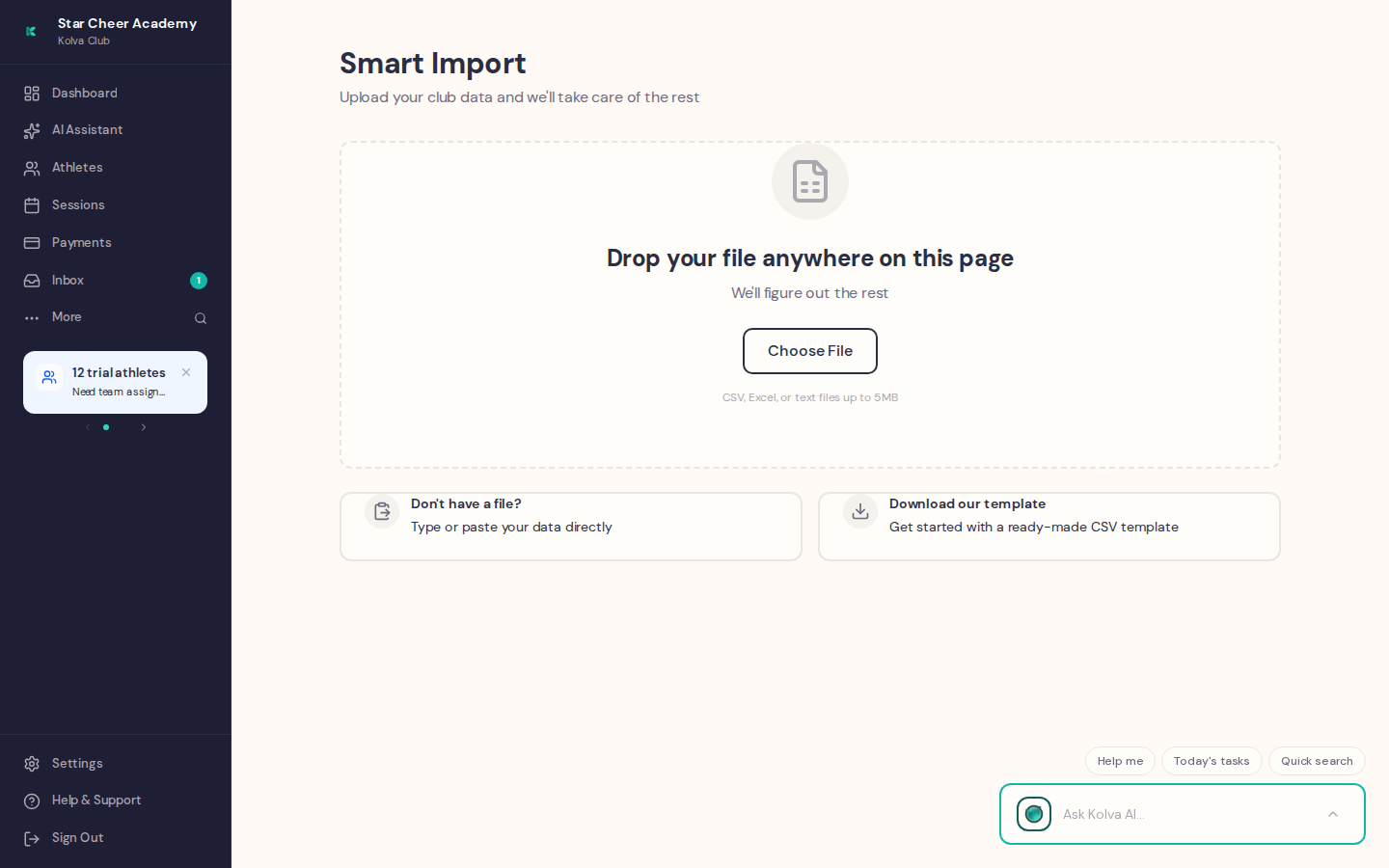
Sign in as an admin and open Smart Import: choose Import it myself on the setup page, or click More in the sidebar (or press Ctrl+K, ⌘K on a Mac) and pick Smart Import. Then drop your Coacha export onto the upload area.
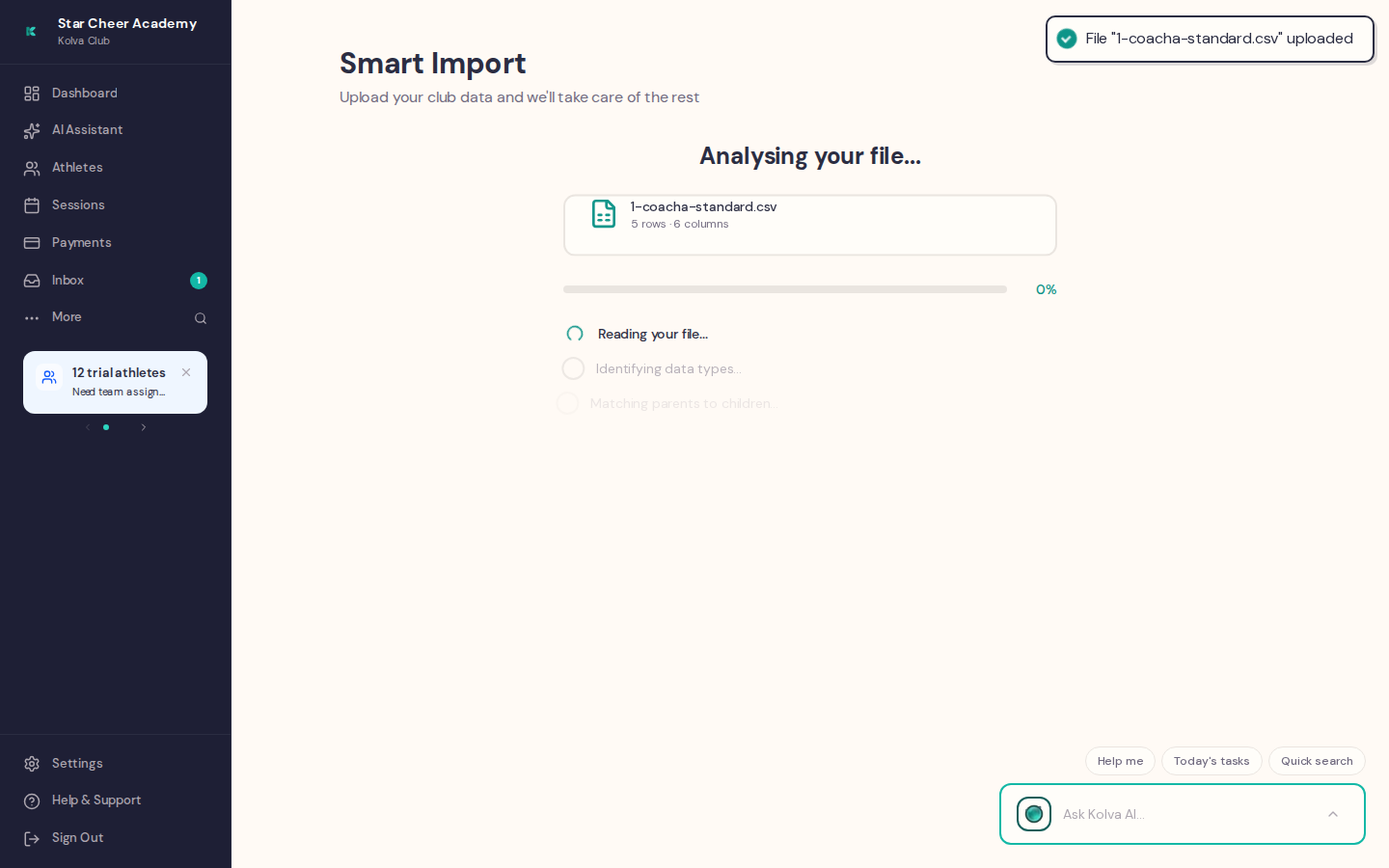
AI analysis
The importer runs your file through Claude Sonnet to identify columns (athletes, parents, teams, sessions, staff) and flag anything ambiguous. This usually takes 10–30 seconds.
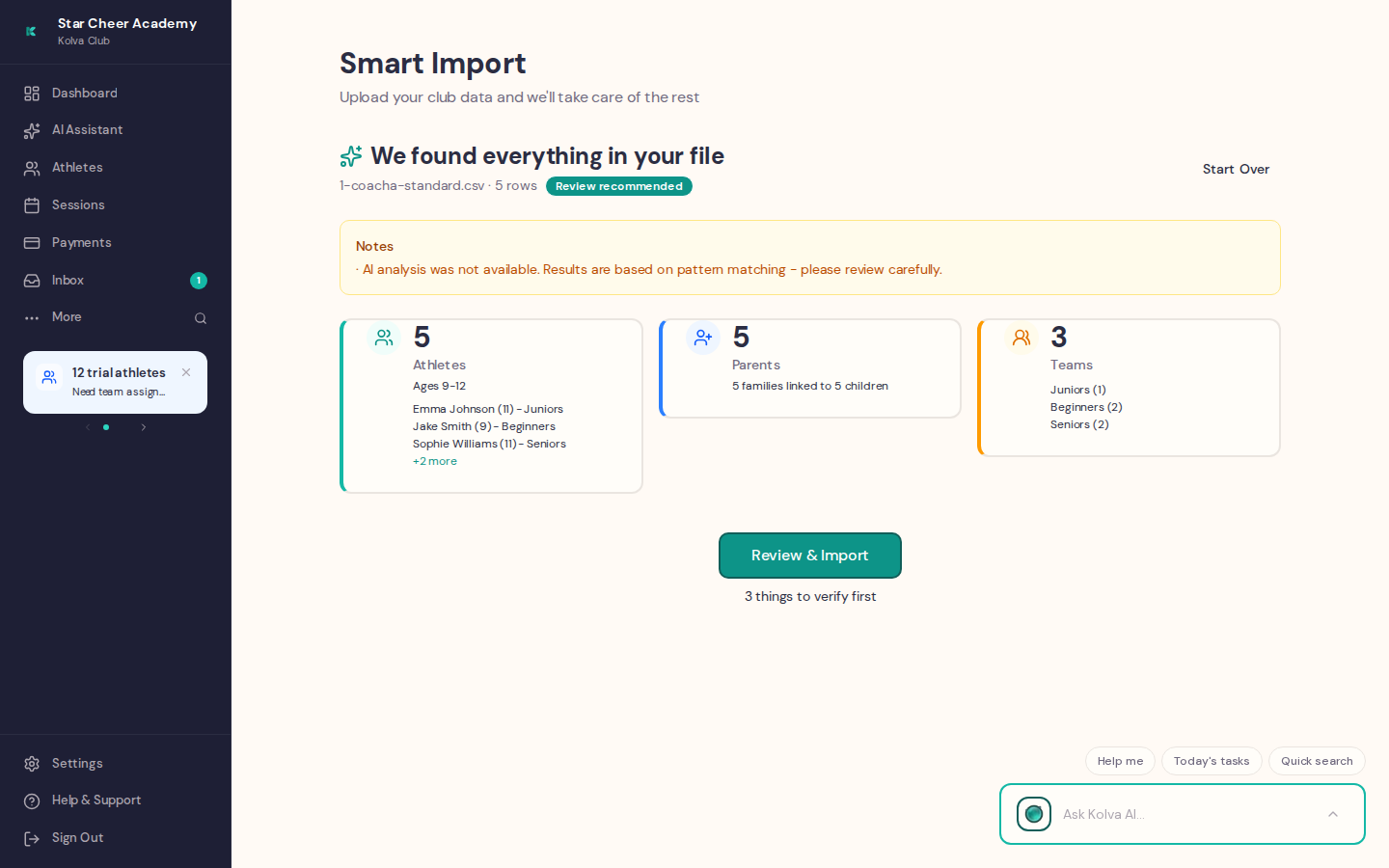
Discovery summary
You'll see a count of what the importer found: athletes, parents, teams, sessions, staff. A confidence score tells you how sure the importer is about what it found.
Spot-checks (only if needed)
For ambiguous columns (e.g. a phone column that could belong to either the parent or the athlete), the importer asks a quick yes/no question rather than guessing. Most Coacha exports skip this step entirely.
Category review
The review screen lets you scan every athlete, parent, team, and session before committing. Toggle individual rows off if there's anything you don't want to import.
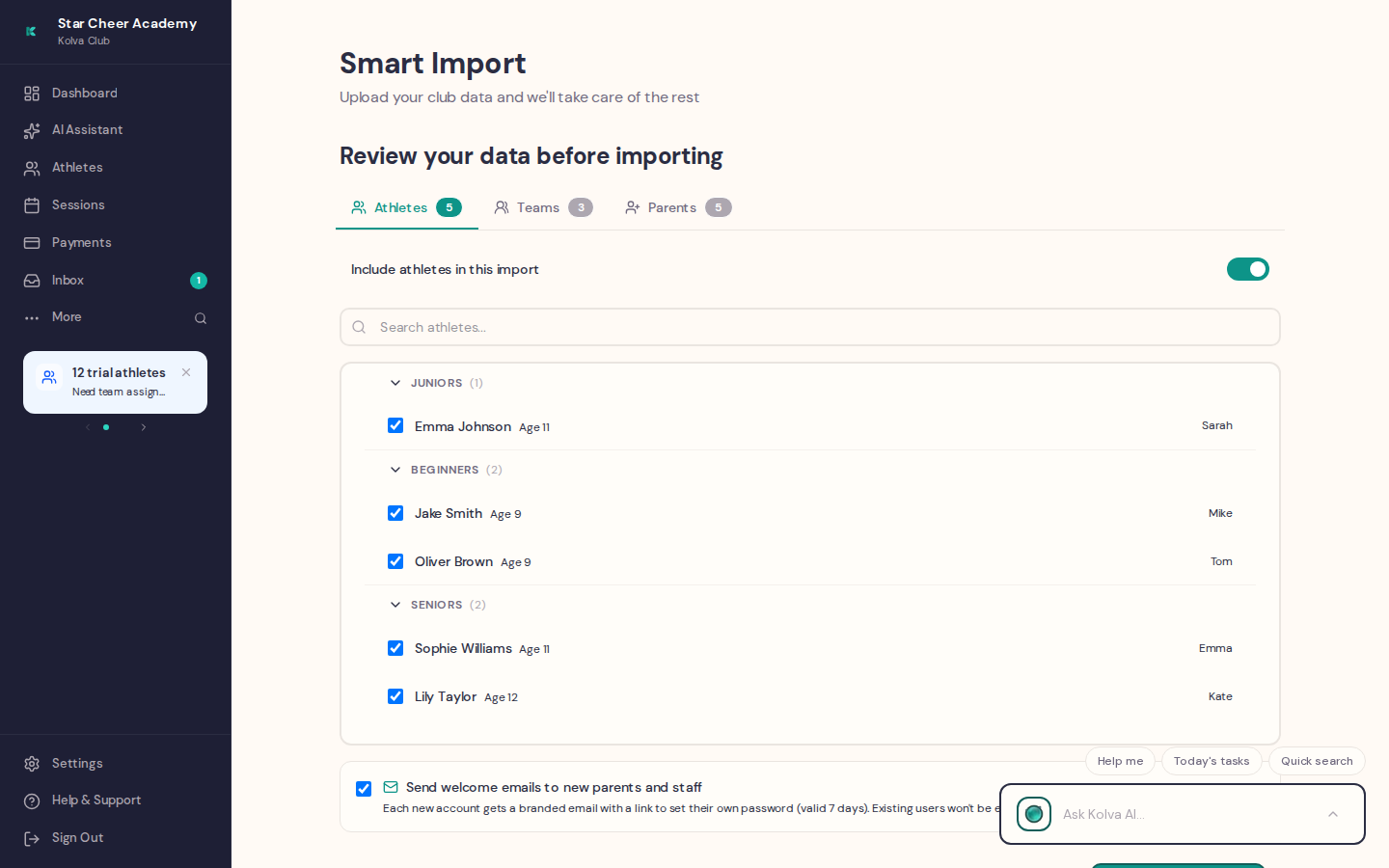
Welcome emails
The import never emails anyone. Every newly-created parent and staff member is marked as not yet welcomed, and a card on your dashboard ("members not yet welcomed") lets you review and send the welcome emails when you're ready, for example after you've briefed parents. On the dashboard, click Review & send on that card. Each welcome is a branded email with a one-time link for the person to set their own password. The link is valid for seven days. We never email plain-text passwords.
Existing parents (matched by email to accounts already in your club) won't be emailed again.
Import and success
Click Import N Records. The flow runs in dependency order (teams → parents → athletes → staff → sessions). No emails are sent at this point.
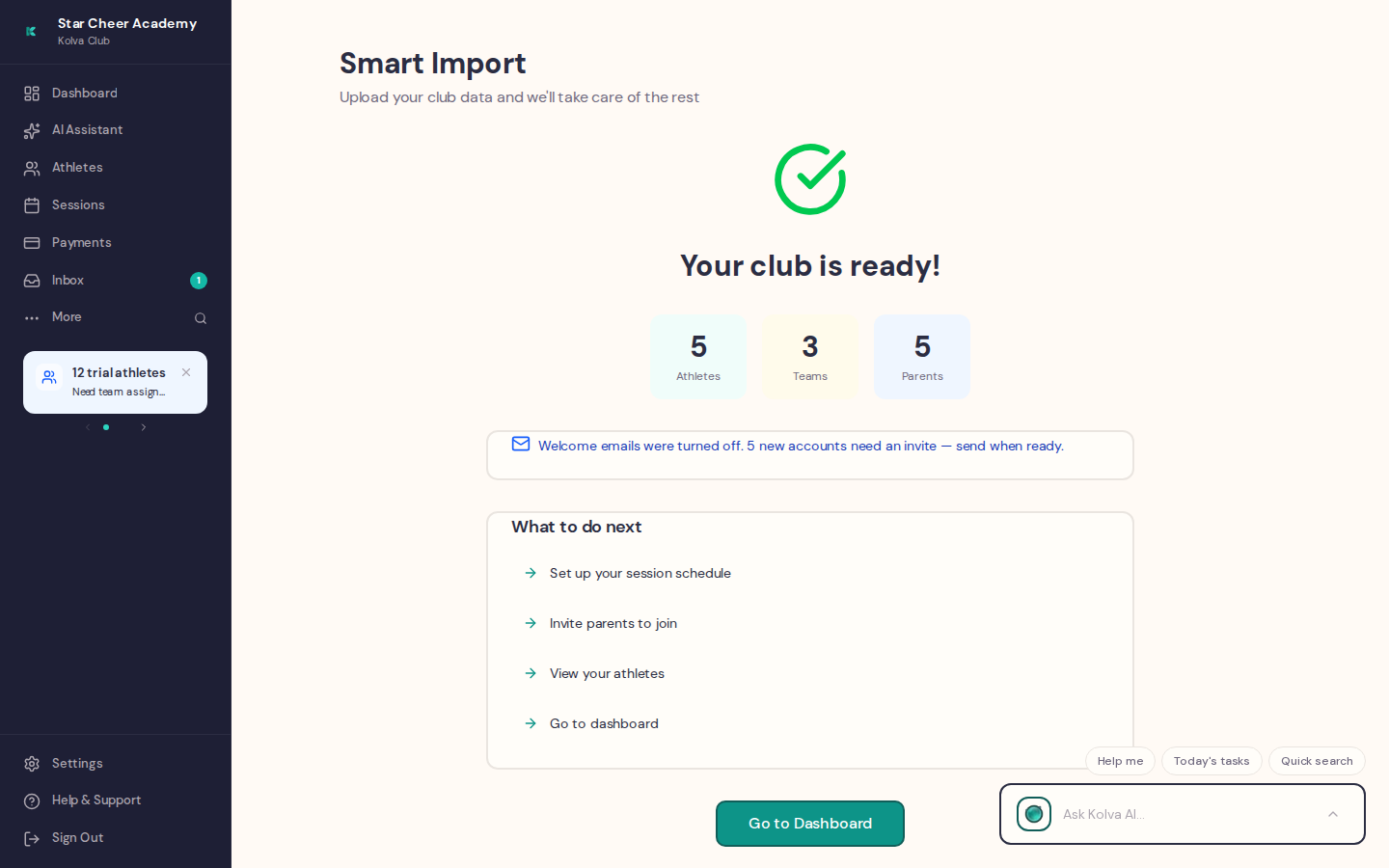
Rows that couldn't be imported are listed with the reason. Fix them in your original Coacha export and import it again: people already imported are skipped. Sessions aren't checked, so untick any sessions you've already imported. A date of birth that can't be read doesn't stop a row: the athlete comes in without one, with a warning, and re-importing won't fill it in. Add it on the athlete's profile instead.
Phase 3 — Direct Debit set-up
Once your Kolva club is connected to GoCardless (see the GoCardless guide), parents set up Direct Debit in Kolva.
Direct Debit mandates do not carry over from Coacha or any other platform. Each parent sets up a new mandate in Kolva from a link in an email.
- When you're ready, each parent gets an email with a link to set up their Direct Debit.
- Parents complete the Direct Debit mandate in a couple of minutes. A new mandate usually takes 1–3 working days to become active.
- You stay on Coacha collection until each parent's new mandate is live, then switch that family over in Coacha so nobody is billed twice.
Some parents will take longer than others, so don't switch a family off in Coacha until their Kolva mandate shows as active.
If GoCardless approval is delayed
Parents can pay by card through Stripe in the meantime. Your imported data and the migration timeline don't change. Talk to us about the options.
Phase 4 — Cutover day
We'll book a 1–2 hour window together for the actual switchover. On the day:
- Leave Coacha collecting — nothing changes for parents' payments on the day. You switch a family off in Coacha once their new Direct Debit is live in Kolva, so nobody is billed twice.
- Run the Smart Import with us on a video call, working through any spot-checks live.
- Verify a sample — we open three parent accounts at random and check the data looks right (children, team, contact details).
- Send welcome emails — when you're ready, from the "members not yet welcomed" card on your dashboard. The import never sends them for you.
- Invite parents to Direct Debit — the setup links go out when you choose.
- Soft monitor for a week — any parent who hits a snag, we sort directly. Most issues are forgotten passwords or wrong emails in the original Coacha export.
After the migration
What parents see
A welcome email from your club asking them to set a password. Once they do, they log into their parent portal and see their child(ren), upcoming sessions, and any outstanding payments. They are also asked to set up a Direct Debit for your club, which takes a couple of minutes.
Common parent questions
- "Why did I get an email asking me to set a password?" — Your club has moved to Kolva. The link is a one-time invite to create your account.
- "Will my Direct Debit still work?" — Your current one carries on until your club moves you across. You'll get a link to set up a new one with Kolva, which takes a couple of minutes, and your club switches the old one off once the new one is live.
- "What happens to my Coacha login?" — You don't need it any more. Your club admin will close it down once everyone's settled in Kolva.
Re-running an import
If you find missing rows after the fact, re-run Smart Import with the corrected file. People it has already imported are skipped (parents by email, children by name under the same parent, or by name and date of birth when a row has no contact email), and only new people join the list waiting for a welcome email. Sessions aren't checked, so untick the sessions you imported the first time. A child you added by hand under a different email isn't recognised, so untick them on the review screen.